Verify with MCP Inspector
MCP Inspector is a client-agnostic tool for testing an MCP server. Use it to confirm that SolarSENS MCP is reachable and that a signed-in account sees the correct read-only tools, independent of Claude, ChatGPT, or OpenCode.
Before you start
-
Install MCP Inspector.
-
Your administrator must enable your SolarSENS MCP access.
-
Use this server URL exactly:
https://mcp.solarsens.co/mcp
Connect over OAuth
- Open MCP Inspector and enter the server URL above.
- Choose the streamable HTTP transport.
- Start the connection. Inspector opens the SolarSENS sign-in page.
- Sign in and approve the read-only connection.
Inspector uses the same OAuth authorization-code flow with PKCE that every other client uses. It does not need a client secret.
List the tools
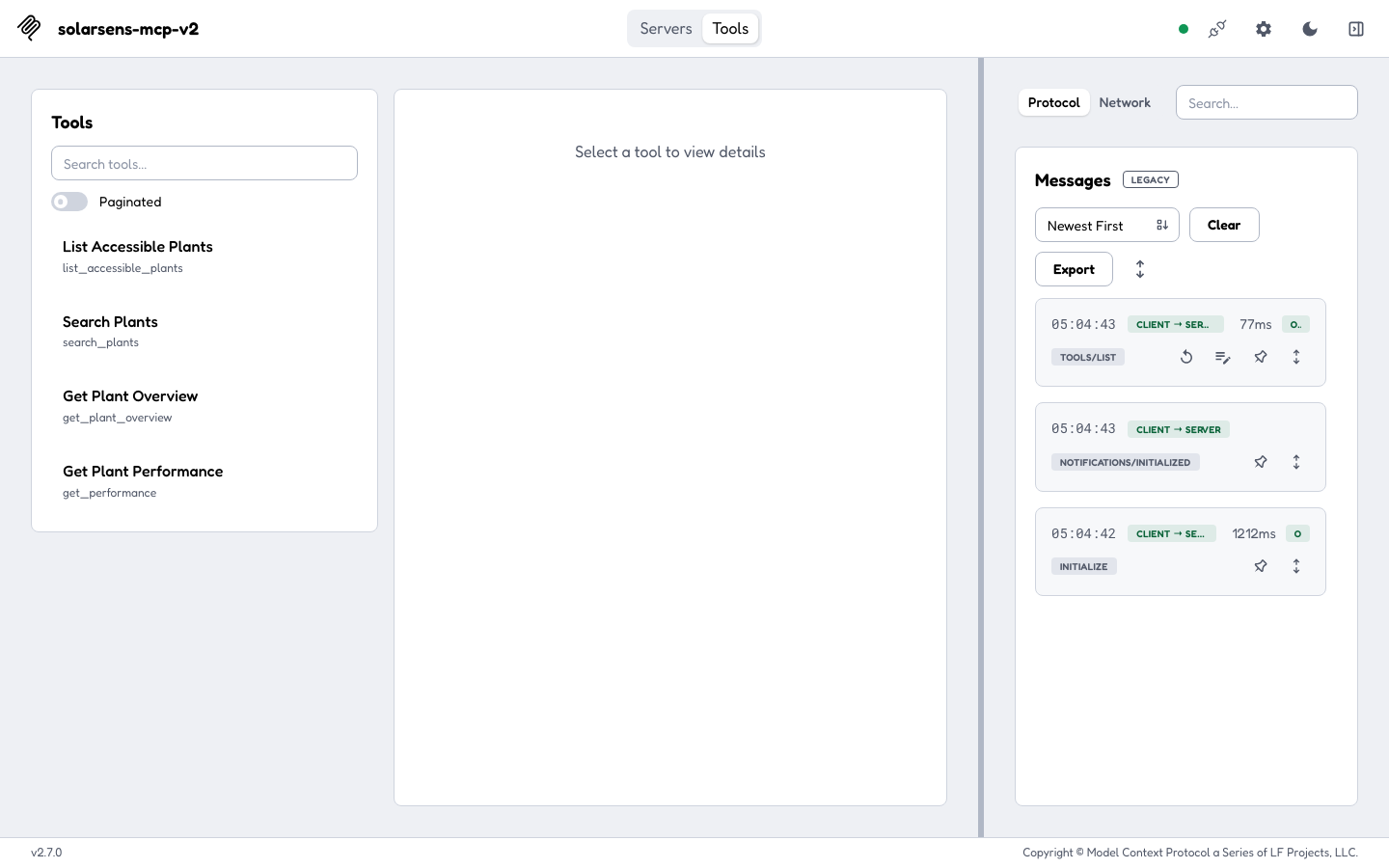
Open the Tools tab. A connected, signed-in session shows exactly four read-only tools:
| Tool | Description |
|---|---|
list_accessible_plants | List every Plant currently authorized for the signed-in SolarSENS account. Read-only. |
search_plants | Find accessible SolarSENS Plants by name or code. Read-only. |
get_plant_overview | Read the caller-scoped Plant identity and catalog summary. Live telemetry is not included. |
get_performance | Read bounded date-level performance for one accessible Plant. Production supports the daily interval only. |
If the Tools tab shows more than four tools, or shows tools named after
devices, alarms, portfolios, or work orders, the connection reached a
non-production server. Confirm the URL is exactly
https://mcp.solarsens.co/mcp.
Run search_plants
- Select
search_plantsin the Tools tab. - Enter a query, for example a location or partial Plant name.
- Run the tool.
The result panel lists the matching Plant IDs your account can access. For
the demo account, a query that matches its only Plant returns DEMO-AI-P001.
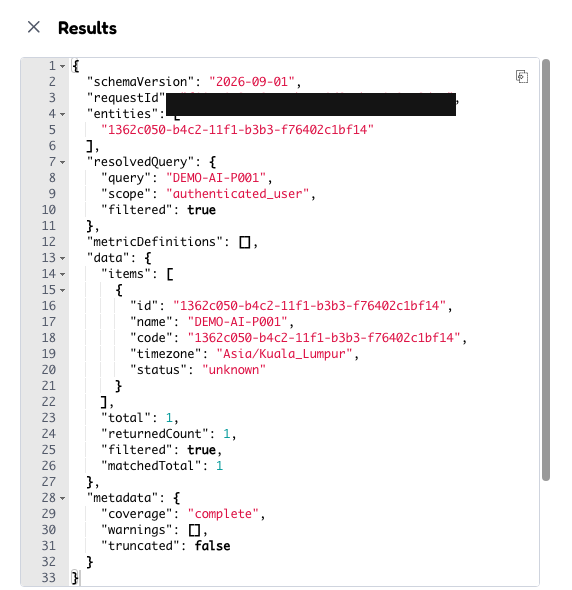
A query that matches nothing returns an empty result. This is a correct outcome, not an error. A Plant outside your account's access scope never appears, no matter what query you use.
If the connection fails
| What you see | What to check |
|---|---|
| Inspector cannot reach the server | Confirm the URL ends with /mcp and that you chose the HTTP transport. |
| The sign-in page returns an error | See Troubleshooting. |
| The connection succeeds but no tools appear | Ask your administrator to check the SolarSENS account-to-Plant mapping. |