Connect Claude
Choose Claude for web or desktop chat. Add SolarSENS as a custom connector, sign in, then ask about your Plants.
- Outputs: charts in the chat, plus Excel files, PDFs, and reports when file creation is on. Free and paid plans have usage limits.
- Check first: a workspace administrator may need to allow custom connectors. See Claude's connector requirements.
Compare apps in Choose your AI.
Before you start
-
Your Claude plan or workspace must support custom connectors.
-
AVA Asia must allow your Cloudflare email for SolarSENS AI and link it to the intended SolarSENS user. The two email addresses can be different. See Sign in.
-
Enter this server address:
https://mcp.solarsens.co/mcp
Sign in through the browser when prompted. Do not paste a password, access token, or client secret into a chat.
Add SolarSENS
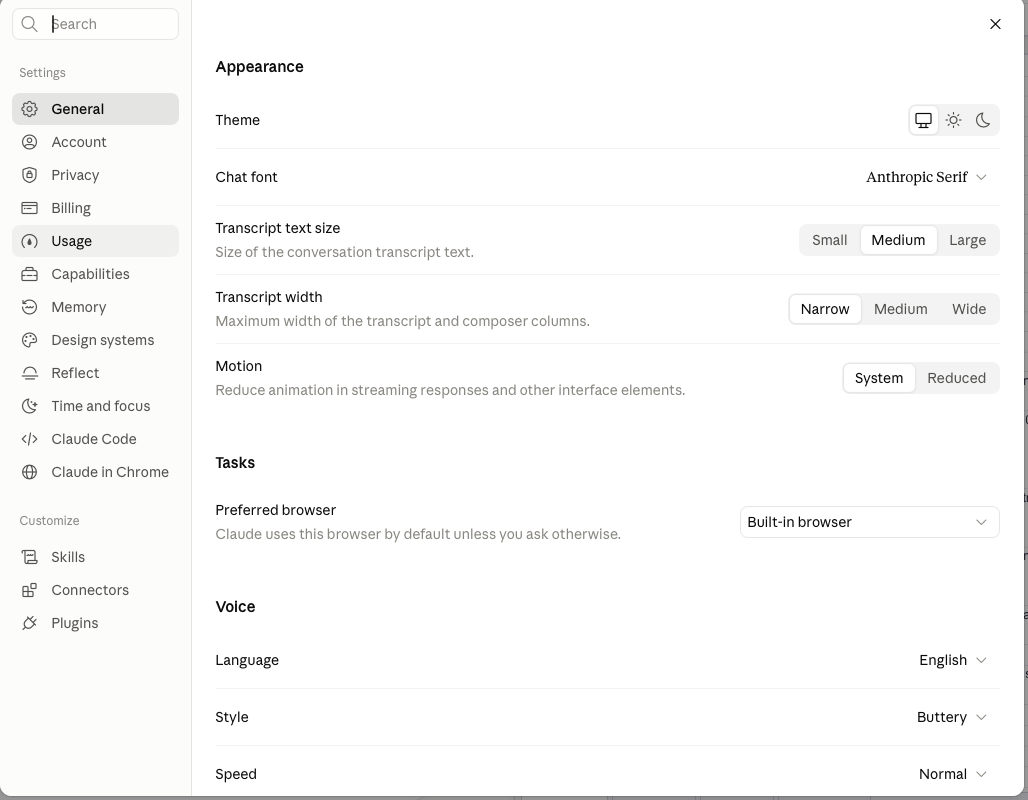
1. Open Settings
Open Settings in Claude. Select Connectors under Customize in the left menu.
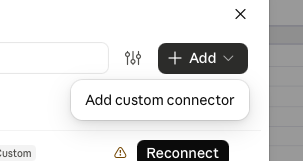
2. Add a custom connector
Select + Add, then Add custom connector.
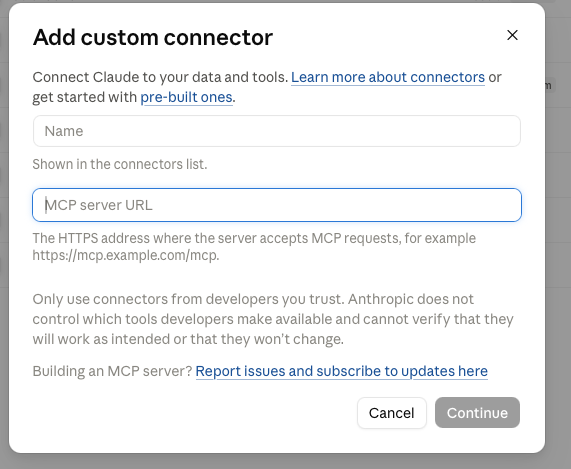
3. Enter the connector details
Set Name to SolarSENS. In MCP server URL, enter:
https://mcp.solarsens.co/mcp
Select Continue.
4. Sign in and allow access
When Claude opens the sign-in page, verify your email through Cloudflare. If AVA Asia already approved the identity link, return to Claude without a SolarSENS password. A personal account may show the secure first-time link page instead.
The connector uses your signed-in SolarSENS access. It does not make every Plant in the customer account visible automatically.
Check the connection
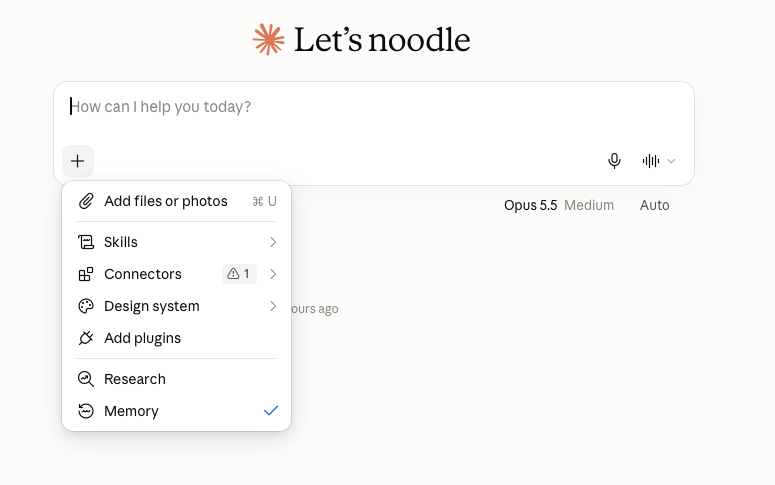
The Connectors list shows SolarSENS with a Connected status.
Open a chat. Select +, then Connectors. Make sure SolarSENS is enabled for the chat.
Send your first message
Ask Claude to find a Plant you can access:
List the SolarSENS Plants I can access. Show the name, code, and timezone of each Plant.
Then ask this question. Replace the text in square brackets with your own details:
Show the power chart for [Plant name] yesterday.
The answer should identify the Plant and show its chart. Review the data coverage notice with the result.
See it in action
Ask for a Plant chart, then use follow-up questions to review the result. Select an image to enlarge it.
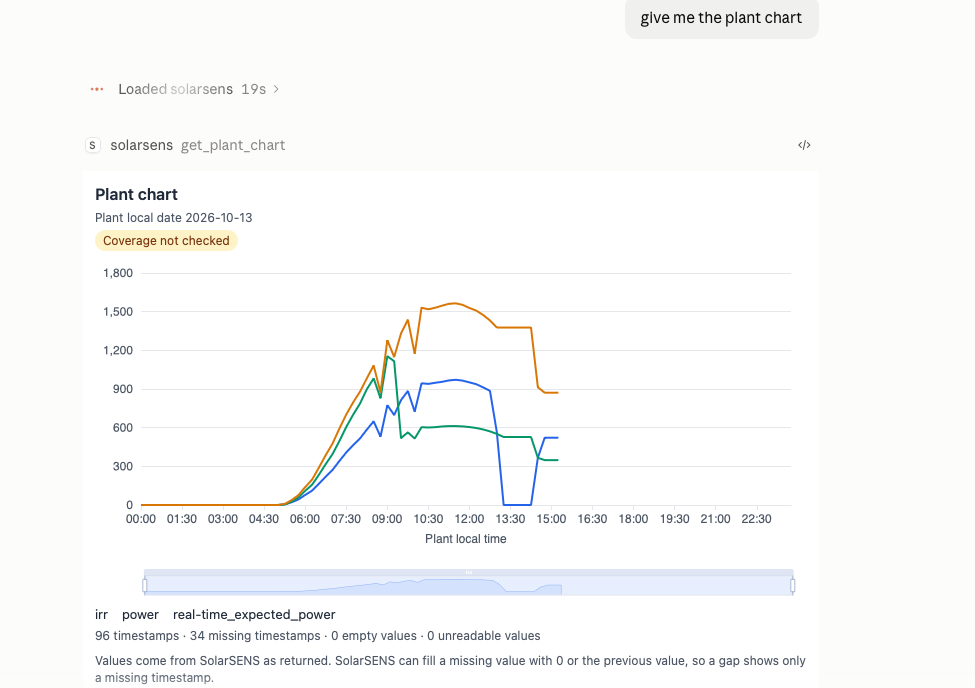
Image 1. Plant chart. Claude shows the chart in the conversation. Review the data coverage notice with the result.
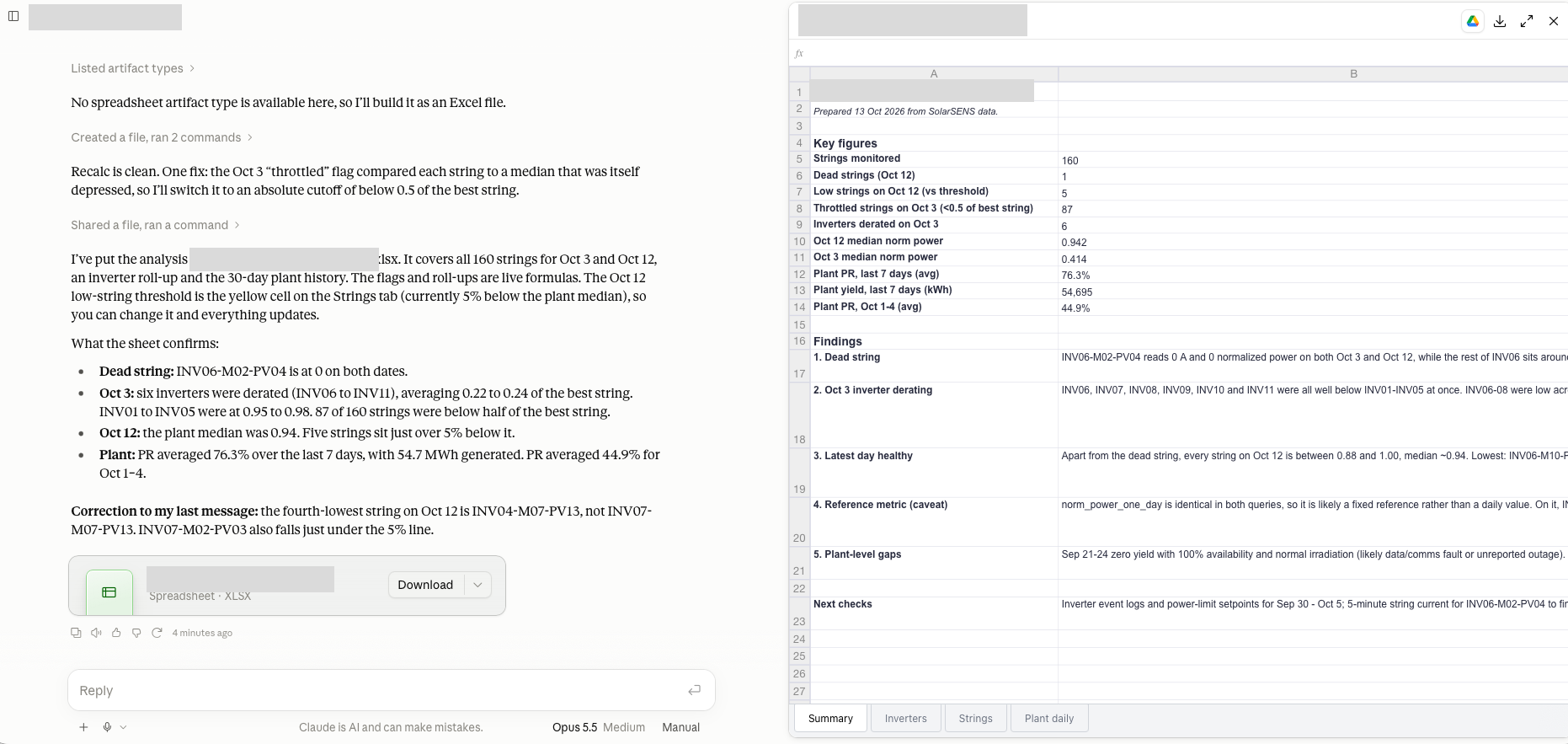
Image 2. Analysis and a spreadsheet. Claude can create a file from the analysis when file creation is on. Select Download to save the file.
If tools do not appear
- Confirm the URL matches the SolarSENS sign-in guide.
- Fully quit and reopen Claude Desktop.
- Check that the SolarSENS connector is enabled for the conversation.
- Remove and add the connector again if the login window did not complete.
- Contact AVA Asia if the connector signs in but returns no Plants.