Connect ChatGPT Web
Use this private setup until the public SolarSENS plugin is available in the directory. It connects the SolarSENS MCP server, signs in with the email AVA Asia allowed for you, and makes SolarSENS available in a Work conversation. This connection adds the SolarSENS tools but not the guided Skills.
- Outputs: charts in the chat, plus Excel files, PDFs, and reports when your plan includes file creation.
- Check first: your ChatGPT plan and workspace must allow custom MCP apps. See OpenAI's custom app requirements.
Before you start
-
ChatGPT must allow custom MCP apps for your account or workspace.
-
AVA Asia must allow your Cloudflare email for SolarSENS AI and link it to the intended SolarSENS user. The two email addresses can be different. See Sign in.
-
Enter this server address:
https://mcp.solarsens.co/mcp
Sign in through the browser when prompted. Do not paste a password, access token, or client secret into a chat.
Create the SolarSENS app
In the current ChatGPT web UI:
-
Open Plugins from the sidebar.
-
Select Add, then Add custom MCP server.
-
Enter
SolarSENSas the name. Select Server URL.Download the SolarSENS app icon and upload it as the plugin icon. Use the
SolarSENSname and this icon so you can find the plugin in ChatGPT. The supplied PNG is at least 256 × 256 pixels and no larger than 10 KB. -
Enter the server URL above. Keep OAuth as the authentication method.
-
Do not open Advanced OAuth settings. ChatGPT discovers the managed OAuth configuration from the server URL.
-
Review ChatGPT's custom MCP warning. Select I understand and want to continue, then select Create as a plugin.
The warning is the same for every custom app. SolarSENS only reads data, and ChatGPT gets only the Plant access of the SolarSENS account linked to your allowed email.
Sign in and approve
- On the plugin page, find the SolarSENS app and select Connect.
- Verify your email through Cloudflare. If AVA Asia already approved the identity link, continue without a SolarSENS password. A personal account may show the secure first-time link page instead.
- Return to ChatGPT.
After you return, the plugin page shows the SolarSENS app without a Connect button. Select Try in chat to open a Web Work conversation.
The page lists one SolarSENS app under Apps and no Skills. This connection adds the SolarSENS tools only. The guided Skills come with the SolarSENS plugin, which works in the ChatGPT desktop app and Codex.
If the secure link page asks for your own SolarSENS account, type the password there only. ChatGPT never sees it. A user mapped to a shared SolarSENS account does not need that shared password. SolarSENS checks your access before it returns any Plant data.
Test the connection
In the web composer, select Work, open Plugins, and select SolarSENS. Start with discovery:
List the SolarSENS Plants I can access. Show the name, code, and timezone of each Plant.
Then ask for a bounded read. Replace the text in square brackets with your own details:
Show daily performance for [Plant name] from [start date] to [end date]. Include yield, performance ratio, availability, timezone, and data coverage.
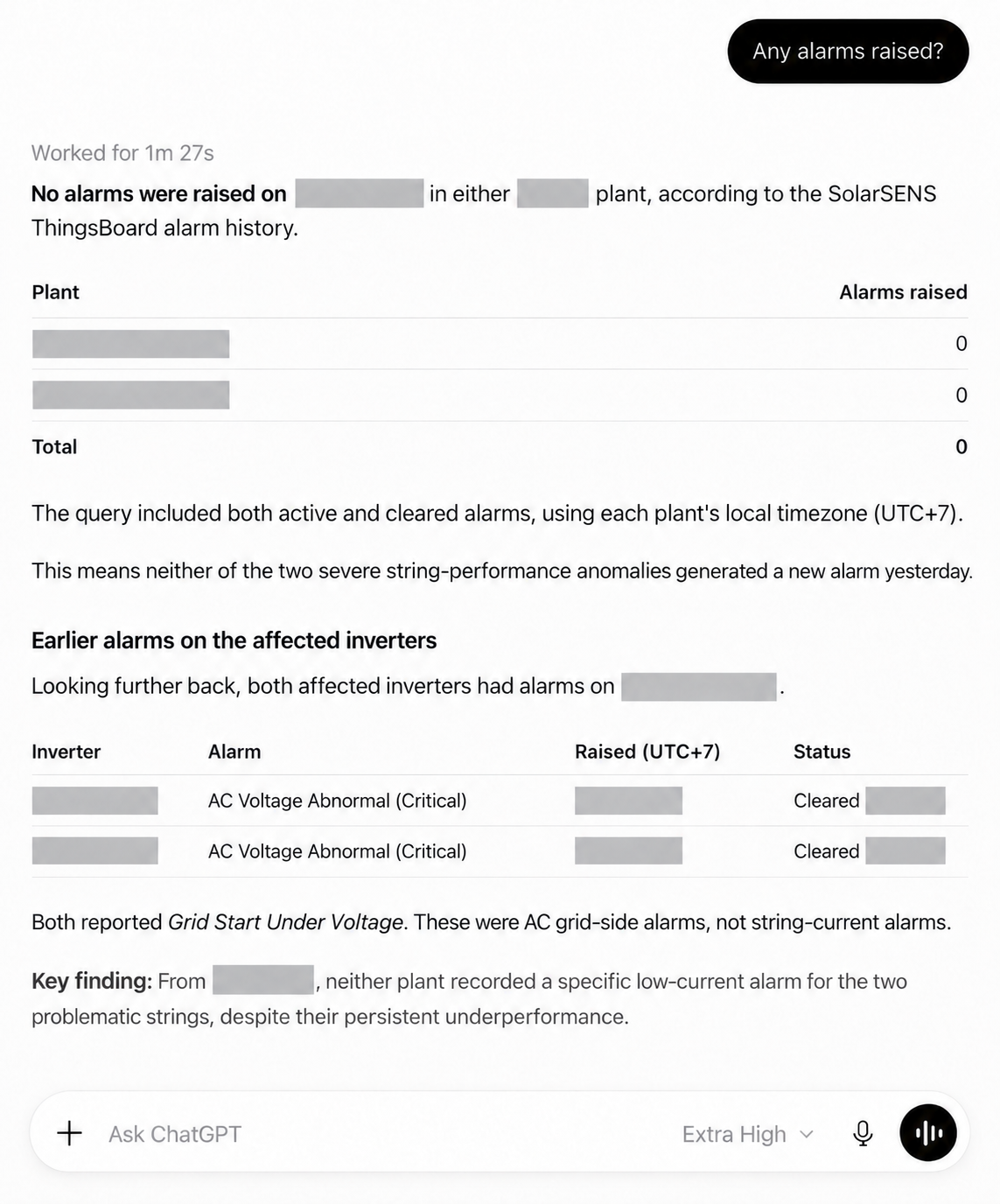
The response should name a Plant and show a visible tool-call indicator.
Then ask for a chart. Replace the text in square brackets with your own details:
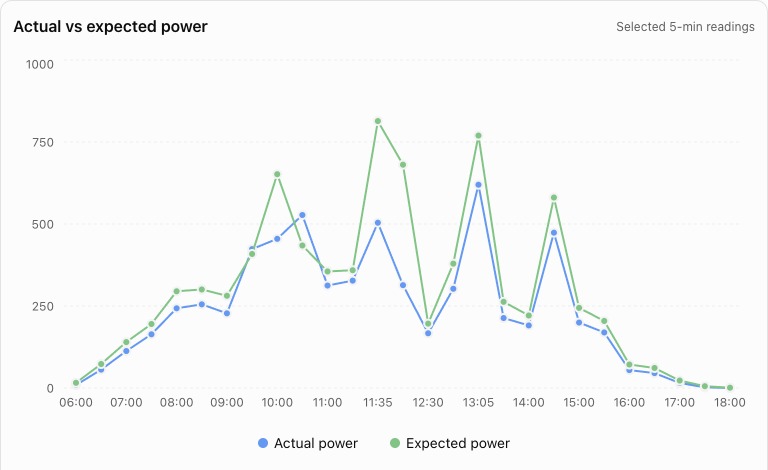
Show the power chart for [Plant name] yesterday.
ChatGPT shows an interactive chart in the conversation. See See a chart in the chat.
If the assistant returns no Plant, the account is connected but has no mapped Plant scope. Contact AVA Asia. Do not try to gain access by typing a different Plant ID.
Refresh the tools after a SolarSENS update
ChatGPT keeps a copy of the SolarSENS tool list. It does not get the new list when SolarSENS adds or changes a tool. A new sign-in does not update the list.
After a SolarSENS update, use Settings → Plugins → SolarSENS → Manage app → Refresh tools, then start a new chat. For the full steps, see ChatGPT: Refresh tools.
If the connection fails
| What you see | What to check |
|---|---|
| OAuth is not supported | Confirm that the URL ends with /mcp and that you selected OAuth. |
| The browser login succeeds but ChatGPT shows an error | Remove the connector and add it again so ChatGPT starts a fresh authorization flow. |
| The connector connects but no Plants appear | Ask AVA Asia to check the SolarSENS account-to-Plant mapping. |
| A Plant is forbidden | The Plant is outside the signed-in account scope. This is an access result, not a prompt error. |
| The authorization page shows the wrong email, or Connect another account does not ask for an email | Sign out of Cloudflare, then connect again. See Use a different account. |
| SolarSENS is missing from a normal Chat conversation | Switch the conversation to Work, then select Plugins → SolarSENS. |
| ChatGPT uses a tool that SolarSENS no longer offers, or does not show a chart | Refresh the tools. See Refresh the tools after a SolarSENS update. |
| Cloudflare shows "Error 1010" | See Connection help. |
| SolarSENS says the identity is not linked | Ask AVA Asia to approve a shared-account mapping, or complete the first-time account link for your own SolarSENS account. Then reconnect. |
Test connection
MCP Inspector is a client-agnostic tool for confirming a connection and its read-only tools. See MCP Inspector.