Install the Desktop and Codex plugin
Use the plugin archive when you want SolarSENS and its guided Skills in the desktop app or Codex. You manage and upload the ZIP on ChatGPT Web, but the plugin page opens the installed plugin in the desktop app. Each person still signs in with their own SolarSENS account; uploading the plugin does not grant access to Plant data.
The archive-uploaded plugin does not appear in the ChatGPT Web Work → Plugins picker. For a web conversation, follow Connect ChatGPT Web instead.
Before you start
- Use ChatGPT on the web to manage the upload. Your account needs the Upload plugin archive option. In a managed workspace, an owner or admin controls who can upload plugins.
- Install the desktop app or Codex before you try to open the uploaded plugin.
- Download the latest SolarSENS plugin archive. Keep the file zipped.
Upload the archive
-
In ChatGPT, open Plugins, then select Browse directory. This opens the plugin directory.
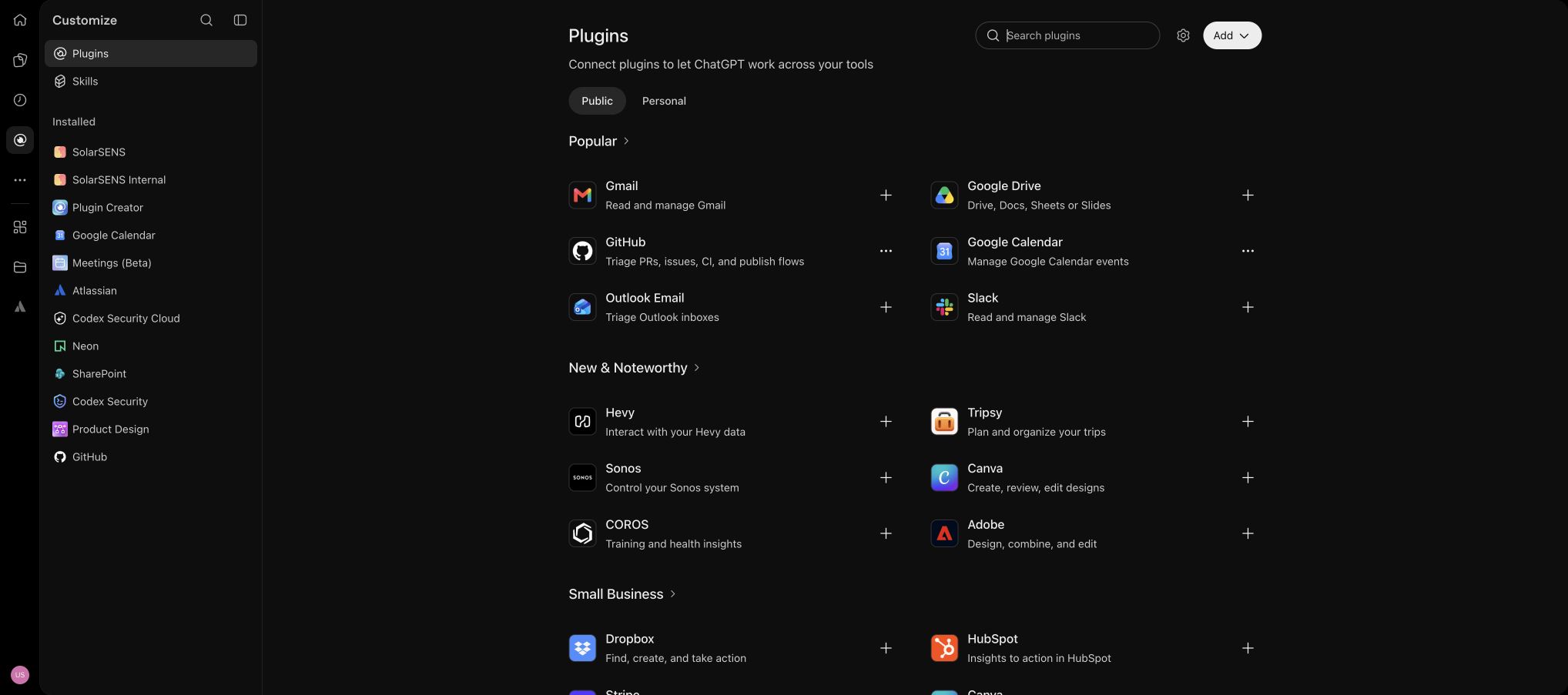
-
Select Add, then Upload plugin archive.
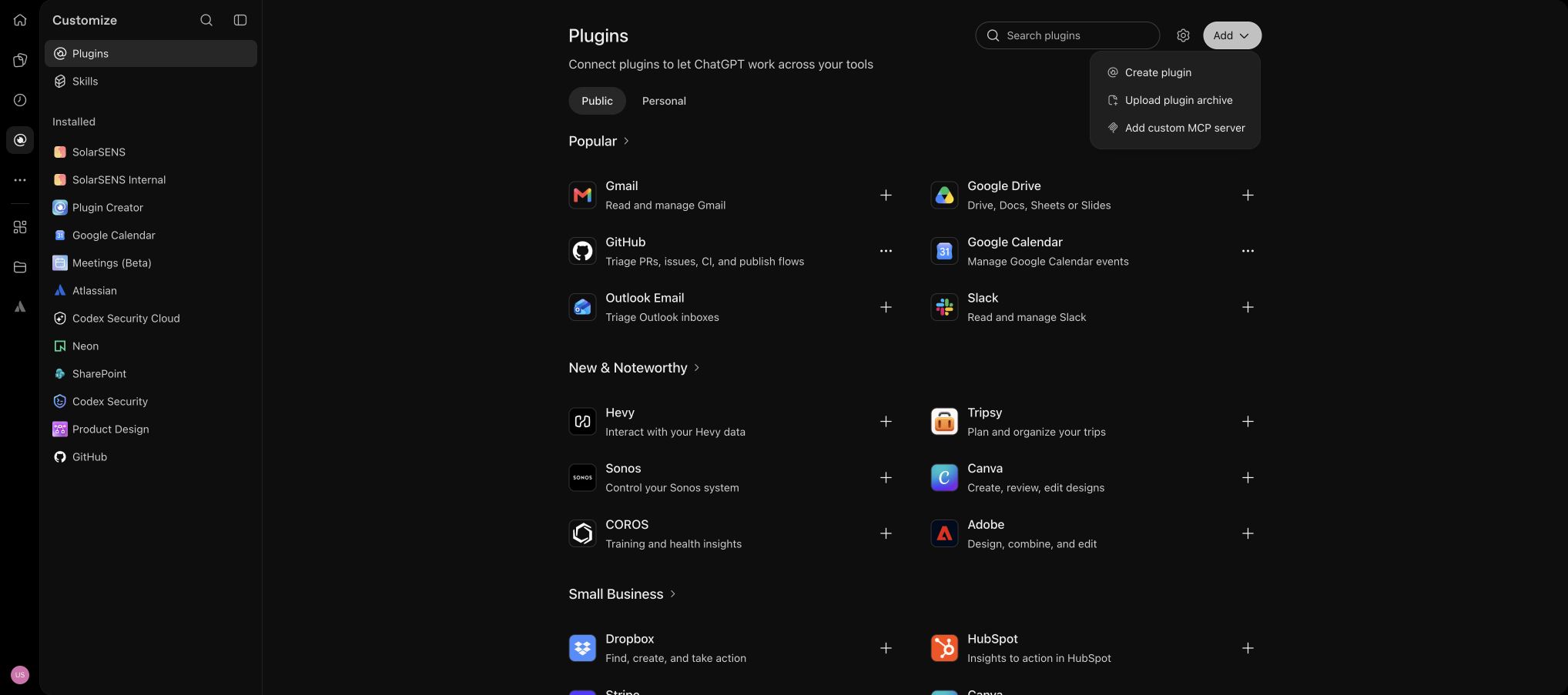
-
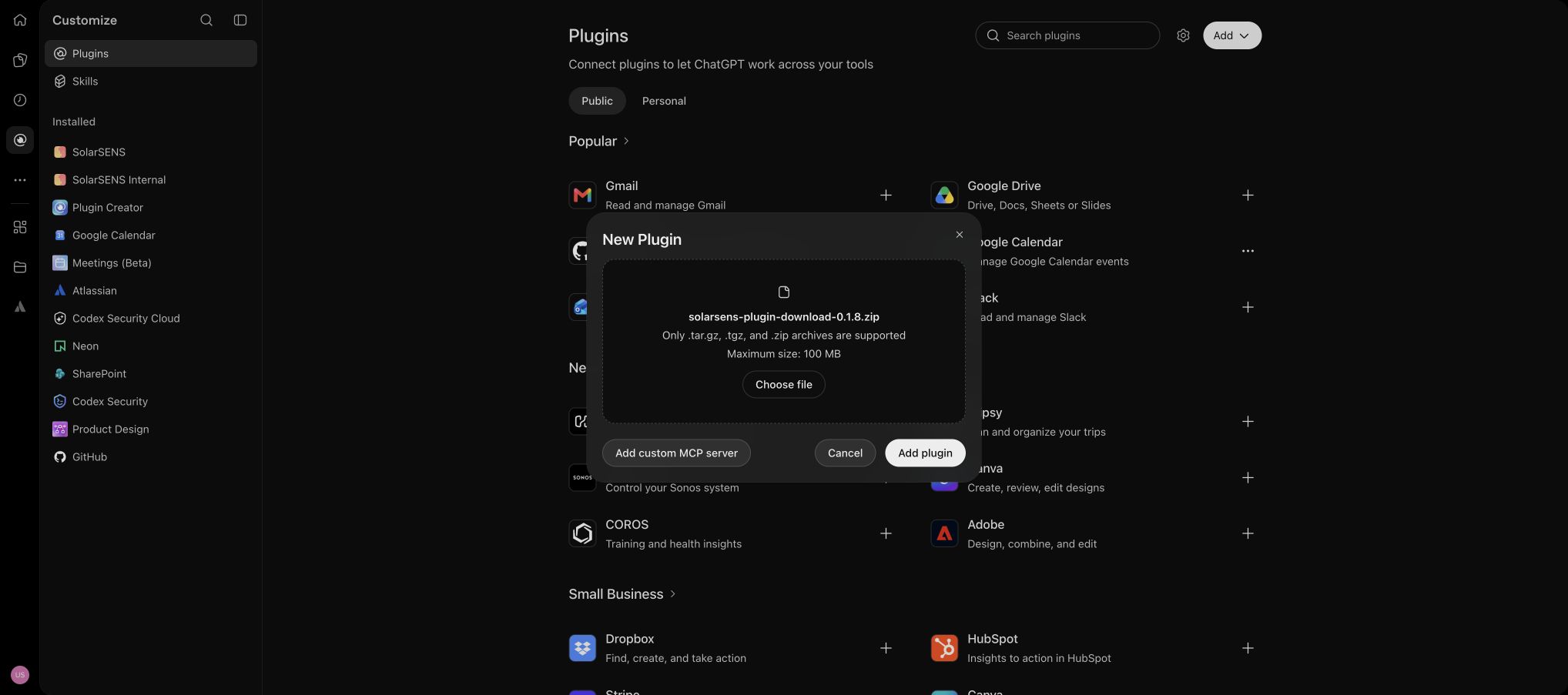
Select click to upload and choose the ZIP file you downloaded.
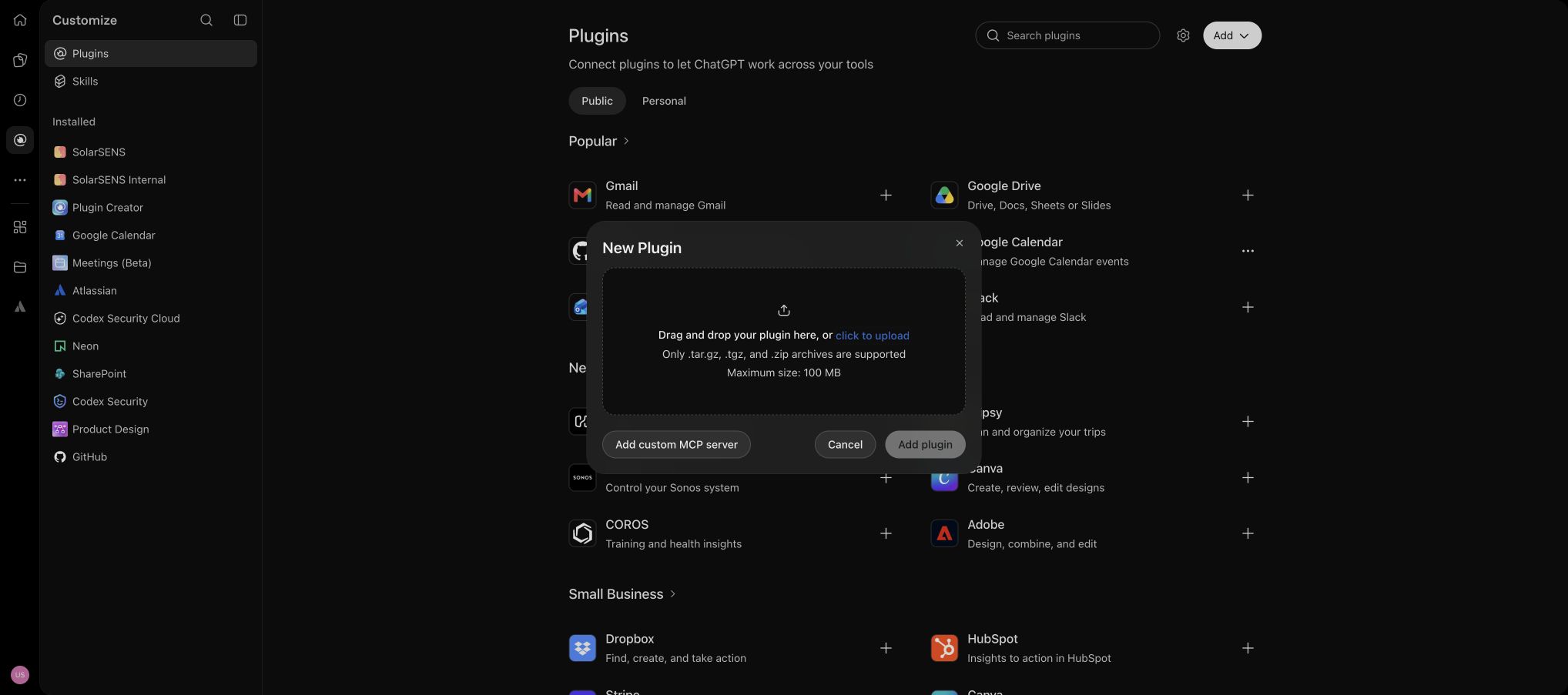
-
Check the file name, then select Add plugin.
-
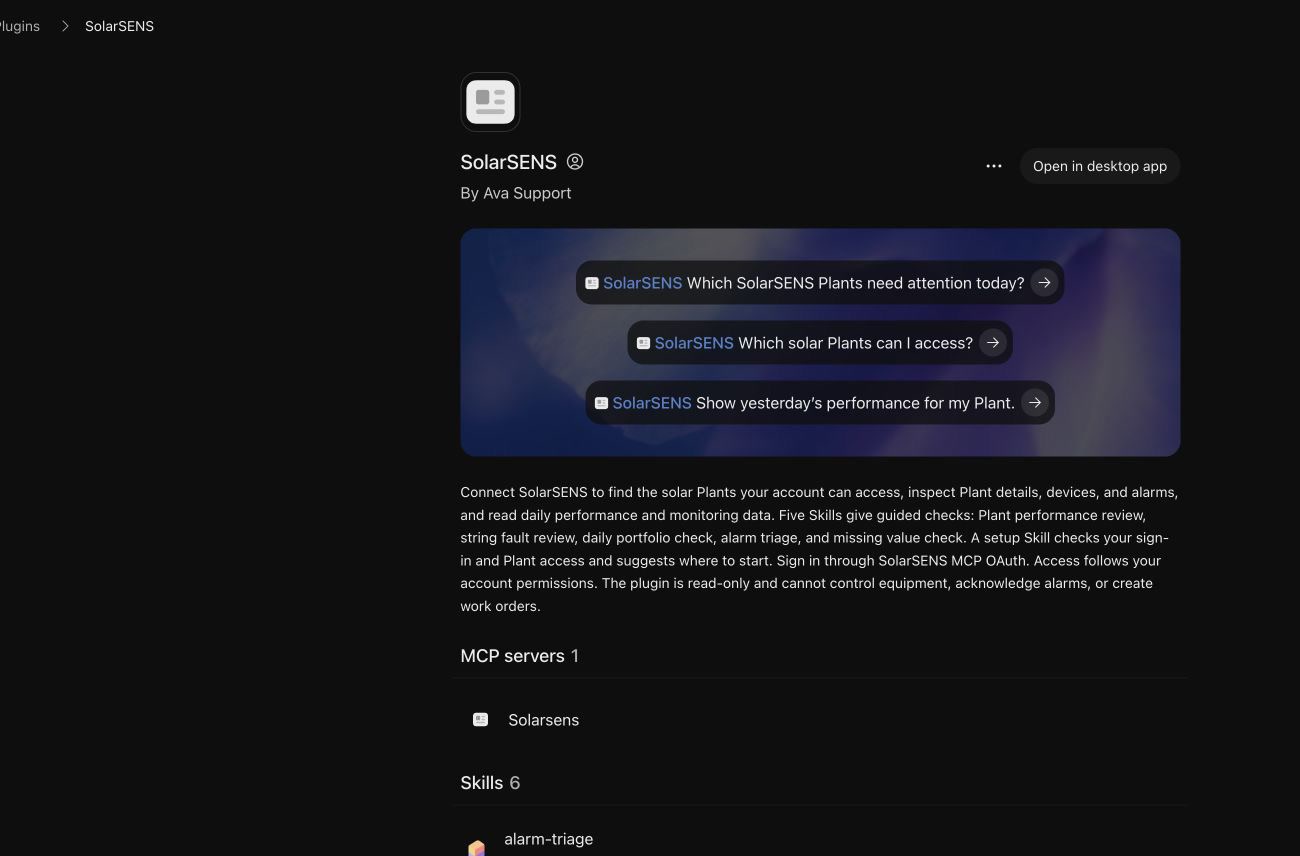
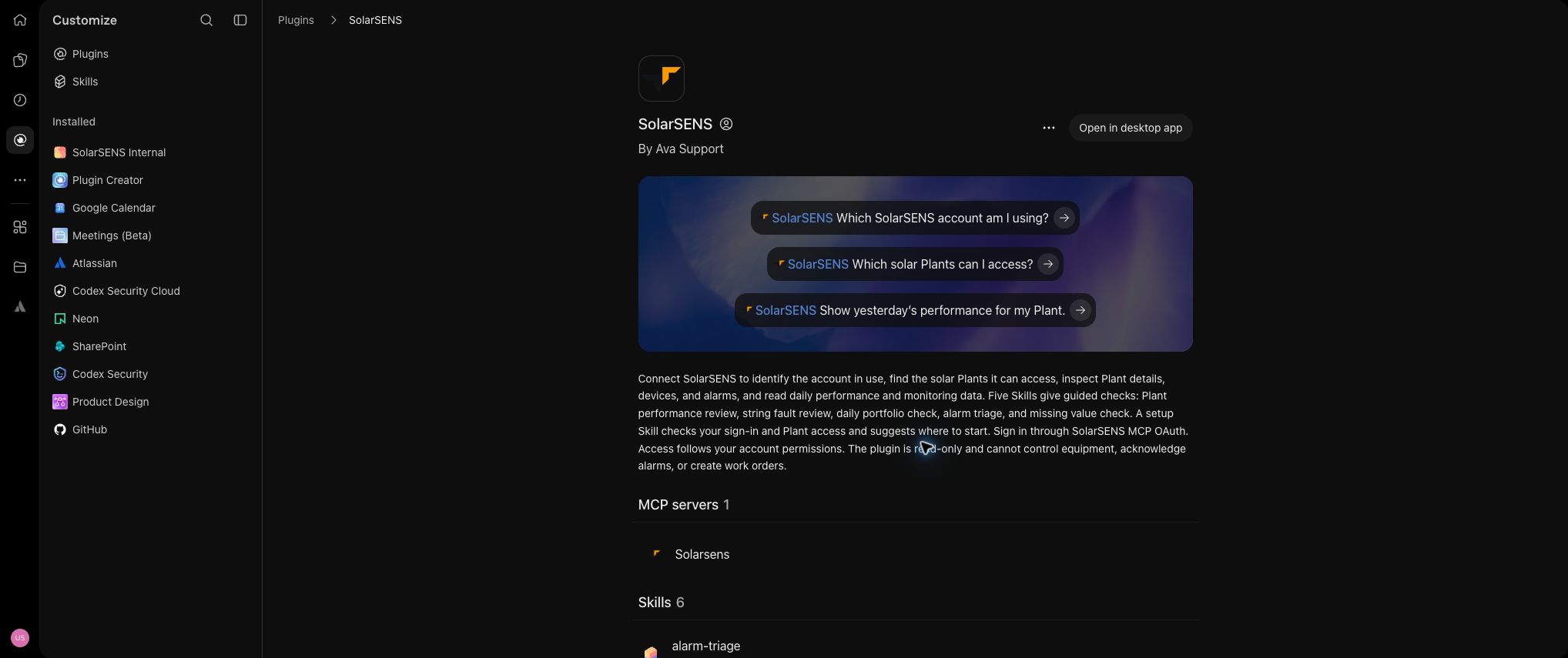
Open SolarSENS from the installed-plugin list. Under Information, check that the displayed version matches the release you downloaded. The page also lists one MCP server and the packaged Skills.
-
Select Open in desktop app. In the desktop app or Codex, connect the SolarSENS MCP server and complete the browser sign-in when prompted.
The Web custom app and the ZIP-based Desktop/Codex plugin can both exist in the same ChatGPT account. They both appear as SolarSENS, but only the Web custom app appears in the Web Work plugin picker.
Update a manually uploaded plugin
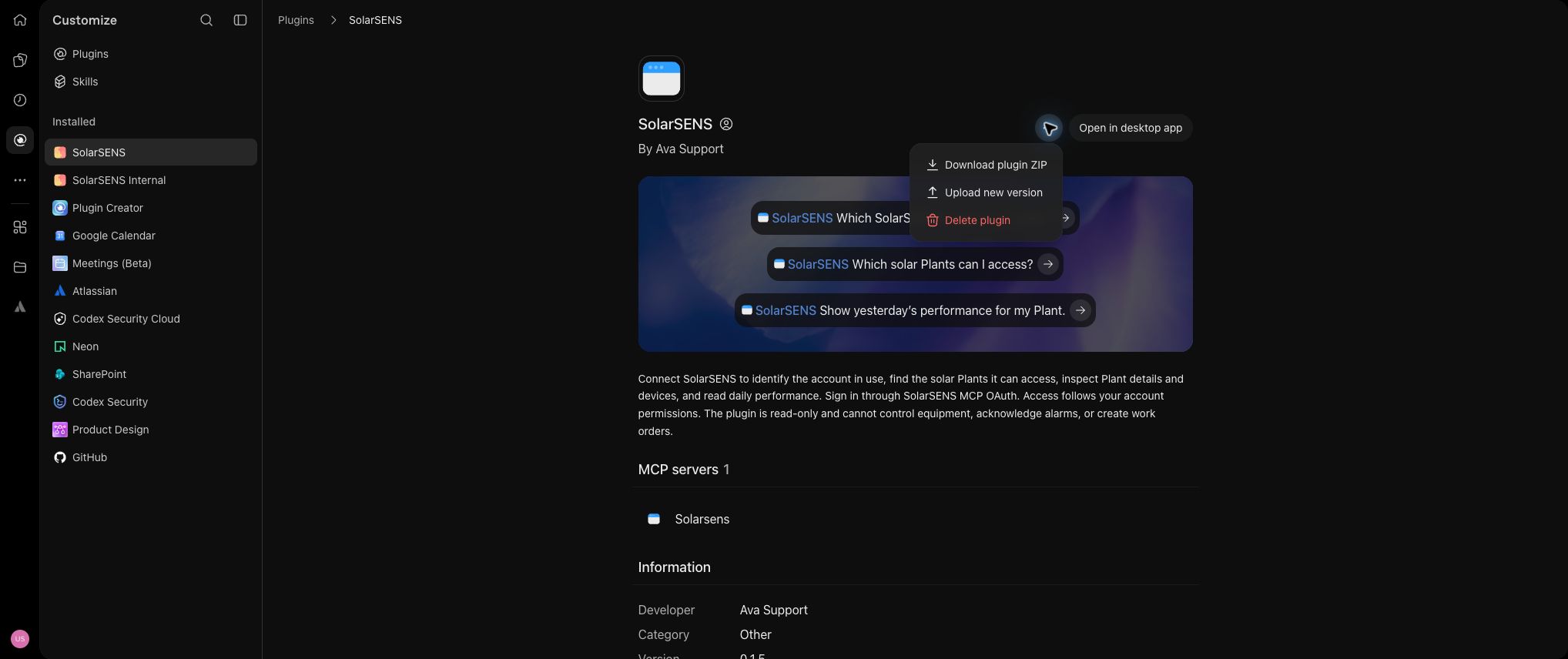
Download the latest archive again. Open the manually uploaded SolarSENS plugin, select •••, then Upload new version, and choose the new ZIP.
Managed workspaces
Workspace owners and admins can also manage plugins for a ChatGPT workspace from the OpenAI Admin Console. Uploading, sharing, installation policy, and app access are separate controls. Follow your workspace policy and OpenAI's plugin help.
If the upload fails
| What you see | What to check |
|---|---|
| There is no Upload plugin archive option | Your account or role does not have upload access. Ask a workspace owner if this is a managed workspace. |
| ChatGPT rejects the file | Upload the ZIP itself, not an extracted folder. Download it again if the file is incomplete. |
| ChatGPT says a plugin with the same internal name exists | Download the latest archive. Current SolarSENS manual-upload archives use a collision-free internal identifier. |
| SolarSENS is installed but is missing from the Web Work plugin picker | This is expected for the ZIP-based Desktop/Codex plugin. Create the Web custom app instead. See Connect ChatGPT Web. |
| SolarSENS shows no Plants | Sign in with the intended SolarSENS account. If it has no mapped Plants, contact AVA Asia. |